...
- Via the 3Delight Relationship Editor or AssignmentPanel (the 3Delight for Maya way). The advantage of this method is that you can set the option on a large number / hierarchy of objects quickly. Because this method does not affect the OpenGL viewport there is no performance loss when setting the attributes on large polygon meshes.
- Via Maya smooth mesh shape nodes attributes or Maya "3" Hotkey (the Maya way). The advantage of this method is that you just need to hit the hotkey and you will see the object displayed as smooth mesh also in the OpenGL viewport. The main disadvantages here is that for large number of meshes and large polygon counts the Maya Viewport will be lagging.
...
- Bring up the 3Delight Relationship Editor.
- In the "Shaders / Attribs" section, choose Create > Geometry Attributes Node.
- Click on the new geometry attributes node in the "Shaders / Attribs" section and click on a polygon mesh object in the "Objects" section.

- Right-click on the geometry attributes node in the Shaders / Attribs" section, and pick "Show in AE".
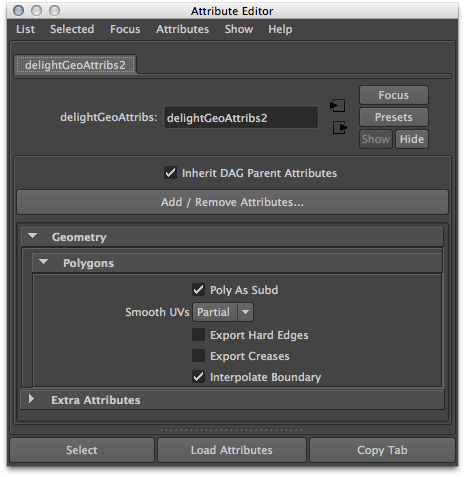
- In the Attribute Editor, right-click on the Add / Remove Attributes... button and navigate to Geometry > Polygons > Poly As Subd.
NOTE: you should only add attributes selectively, like in this example where you are adding the Poly As Subd attribute.
Do not add all attributes in one go, many attributes will locally override global settings and will produce unwanted results. - Turn on the newly added "Poly As Subd" attribute.
- Render as usual.
The polygon mesh object will be rendered as a subdivision surface.
...