All the 3Delight rendering options and stored as attributes and encapsulated inside Render Pass nodes. T Render Settings first present a menu to select which Render Pass to view. The rendering options for the selected Render Pass are displayed right after, just like they are in the Attribute Editor. By default there is only one Render Pass.
The Current Render Pass option menu lists all render pass nodes currently in the scene. The selected one is used for all renderings launched using Render Current Frame or Batch Render options of Maya’s Render menu. The Create Render Pass button on the right of the option menu creates a new render pass node and set it as the one selected for the Current Render Pass attribute.
Overview
An important paradigm in 3delight for Maya is the render pass Render Pass. Simply put, a render pass is Render Pass is a rendering context that encapsulates a list of rendering attributes options and a list (or set) of objects to be rendered. A . All 3Delight for Maya does is encapsulated all the these options (i.e. all the Rendering Attributes presented in the Render Settings window) inside a Render Pass nodes. It is then possible to create many such nodes and select and edit the one we want to use for rendering. A single Maya scene can contain any number of such passes and each one can be . Each one is rendered independently with possibly very different outputs.
Although it is not necessary to have multiple render passes Render Passes (the simplest rendering setup contains only one pass), having the possibility to use many such passes gives increased flexibility of rendering in the production pipeline. As an example, rendering passes could be used to:
- Have multiple rendering quality levels. It is usual to have a render pass Render Pass with settings for a draft render and another one for high quality renders.
- Split rendering of different objects in the scene (such as foreground and background objects) in different passes. In this case, a render pass Render Pass is equivalent to the rendering of a layer which might be composited in a compositing software later in the pipeline.
- Have a one or more passes setup to generate some texture maps (or shadow maps) and the following another pass to use these maps in the final image.
The Render Settings window present a menu to select which Render Pass to view and edit. All the rendering attributes for the selected Render Pass are displayed right below (grouped by categories), just like they are in the Attribute Editor.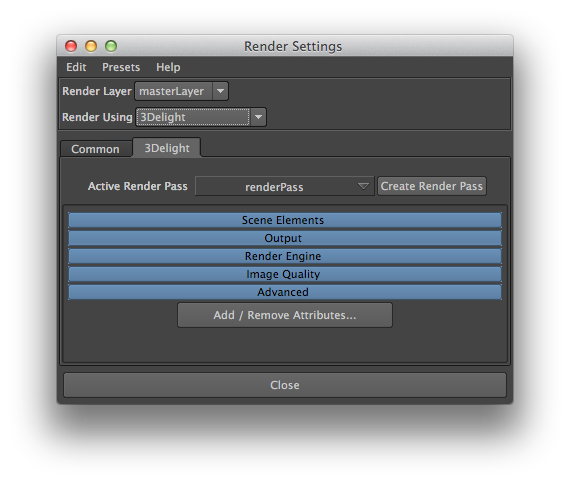
Render Settings window
Here is a description of the items in the Render Settings window for selecting and creating a Render Pass:
Current Render Pass
This option menu lists all Render Pass nodes currently in the scene. The selected one is used for all renderings launched using Render Current Frame or Batch Render options of Maya’s Render menu. By default there is only one Render Pass and it is named 'renderPass1'.
Add Render Pass
The Add Render Pass button creates a new Render Pass node and sets it as the one selected for the Current Render Pass attribute.