| Section |
|---|
| Column |
|---|
| | Panel |
|---|
| borderColor | #e0e0e0 |
|---|
| bgColor | #f0f0f0 |
|---|
| title | In this section: |
|---|
| |
|
|
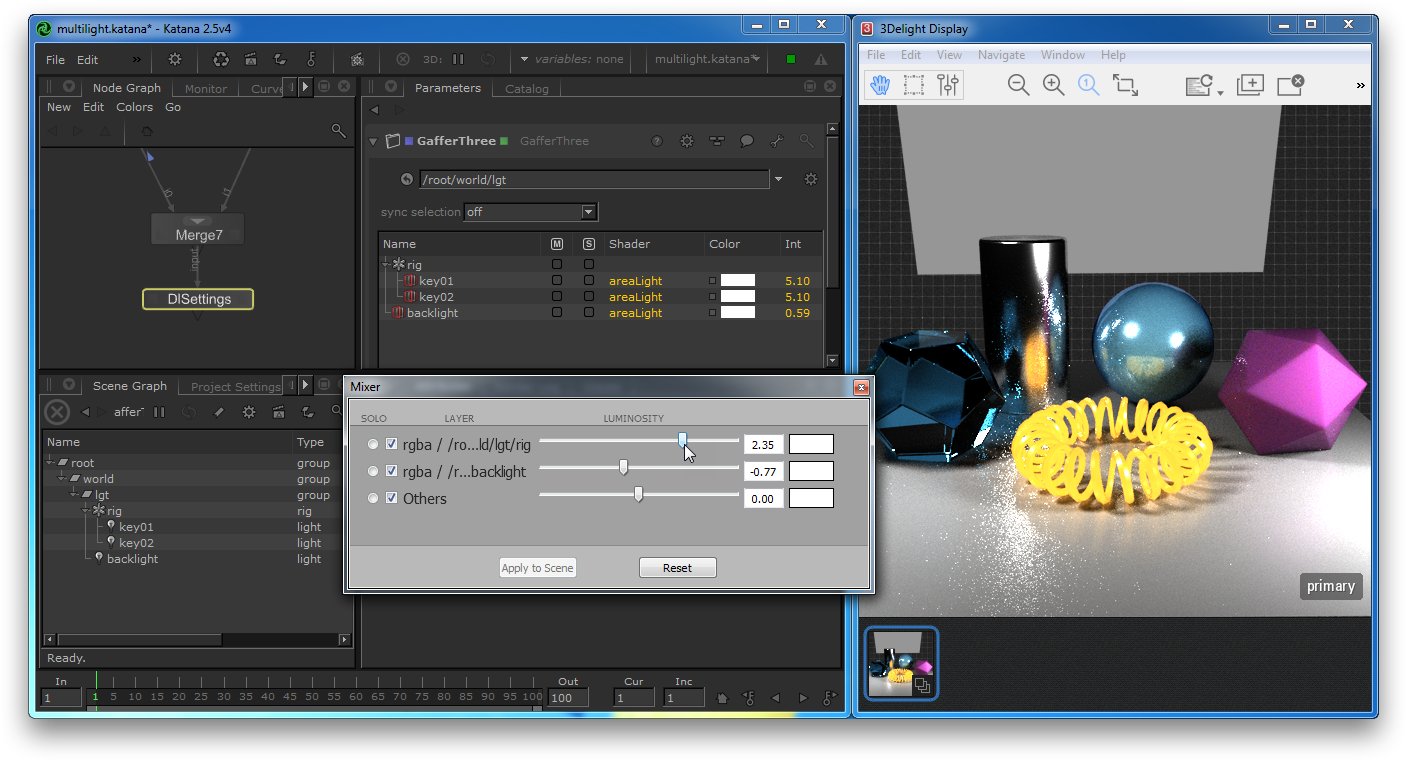
Using 3Delight Display's Mixer to interactively adjust light intensities; the modifications are instantly shown in the rendered image and applied in the scene by KATANA.
...
(fixme: first step is to adjust the path of the abc file by double-clicking on the Alembic_In node at the top of the Node Graph. In the Parameters section, click the down arrow next to the abcAsset textfield; pick Browse and select the mv.abc file that is next to the katana scene file).
Rendering a multi-light image
| Section |
|---|
| Column |
|---|
| | Panel |
|---|
| borderColor | #e0e0e0 |
|---|
| bgColor | #f0f0f0 |
|---|
| Double-click on the DlSettings node to display the 3Delight rendering attributes.
|
|
|
...
| Section |
|---|
| Column |
|---|
| | Panel |
|---|
| borderColor | #e0e0e0 |
|---|
| bgColor | #f0f0f0 |
|---|
| In 3Delight Display, display the contact sheet by double-click the layers icon in the thumbnail view or by choosing View → Contact Sheet.
All rendered layers are shown. You can see one layer per entry picked in the Multi-light list, in addition to the primary RGBA layer. Pick any layer to display it in full size by clicking on it. You can also use the page up and page down keys to cycle through the layers. Select the primary RGBA layer to continue. |
|
|
Light Mixing in 3Delight Display
| Section |
|---|
| Column |
|---|
| | Panel |
|---|
| borderColor | #e0e0e0 |
|---|
| bgColor | #f0f0f0 |
|---|
| In KATANA, double-click on the GafferThree node, which is just above the DlSettings node. In the parameters section, unfold the rig node to display all three lights in the scene. Note their current intensity values.
|
|
|
...