Versions Compared

Key

  • This line was added.
  • This line was removed.
  • Formatting was changed.
Section
Column
width35
Panel
borderColor#e0e0e0
bgColor#f0f0f0
titleIn this section:

Table of Contents

Column
width30


Column
width35
Info

Things to fix:

  • Fix the file path in the Alembic_In node to a proper relative one.
  • Fix bug in DlSettings UI where the primary layer is drawn as selected, but the rest of the UI (i.e. multi-light) is not.
  • Revise rendered look - with proper colour management, things look washed and dull.
  • Re-do the multi-layers image with a layout more like the one in the 3dfm multi-light page.
  • Estimate the overhead of rendering the multi-light image.
  • Should implement "Environment" item in Multi-Light list in Katana.
  • Should add the "Display All Lights" toggle under the Multi-Light list.
  • Should add the "Visible to Camera" attribute on area lights so we can control if the light box itself is visible in the rendered image.

...

Section
Column
width22


column
Column
width56
Panel
borderColor#e0e0e0
bgColor#f0f0f0

Click on the primary image layer to display its Multi-light settings.

Column
width22
Column
width56
Panel
borderColor#e0e0e0
bgColor#f0f0f0

width22
Section

In the Multi-Light section, select the light layers to be rendered.
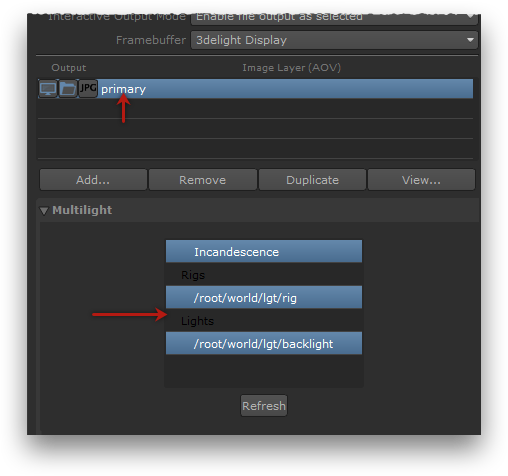

Image Added

In this sample scene, the key lights are grouped in a rig. Rigs get their own entry multi-light list; selecting one rig in that list will render a layer containing all of the rig's lights. Independent lights are listed under the Lights section.

Column
width22


Section
Column
width22


Column
width56
Panel
borderColor#e0e0e0
bgColor#f0f0f0

Right-click the DlSettings node in the Node Graph and select Preview Render. 


3Delight Display will open and show the rendering as it progresses.

Column
width22


...