...
| Section |
|---|
| Column |
|---|
|
| Panel |
|---|
| borderColor | #e0e0e0 |
|---|
| bgColor | #f0f0f0 |
|---|
| Create a Material node.
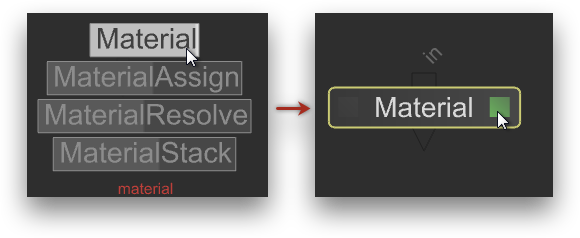
- Press tab and begin to type "material".
- Pick Material to create a Material node.
- Click the faint gray square to the right of the new node's label (or press E) to edit its parameters in the Parameters panel.
|
| Panel |
|---|
| borderColor | #e0e0e0 |
|---|
| bgColor | #f0f0f0 |
|---|
| Add a 3Delight shader to the material node.
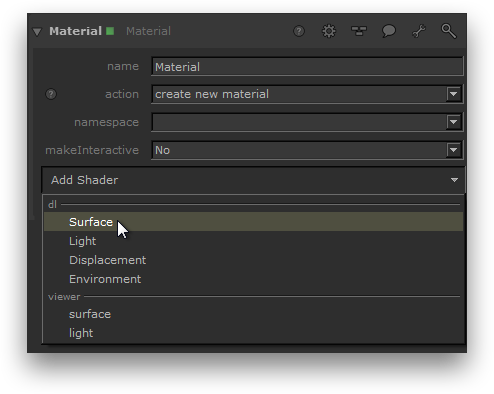
In the Parameters panel, click Add Shader and select the type of shader you want to create under dl. In this example, a surface shader is created. |
| Panel |
|---|
| borderColor | #e0e0e0 |
|---|
| bgColor | #f0f0f0 |
|---|
| Select a 3Delight shader.

Click the down arrow to the right of the dlSurfaceShader label to display a list of available surface shaders. Select the desired shader from the list. |
| Panel |
|---|
| borderColor | #e0e0e0 |
|---|
| bgColor | #f0f0f0 |
|---|
| The shader parameters are now accessible.
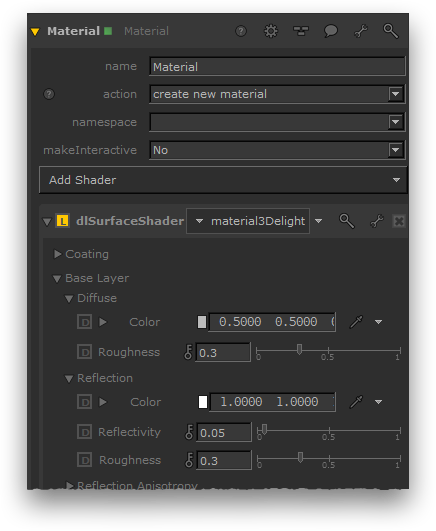
Unfold the parameters by clicking the arrow to the left of the dlSurfaceShader label to reveal the shader parameters. |
|
|
3Delight shaders can be added to a Material node by clicking Add Shader, and then by choosing the desired shader type under dl in the option menu. This will add a dlShader group of the specified shader type. That that contains an option menu; this option menu can be used to select the desired shader. Only OSL shaders of the specified type will be shown. Picking one shader will populate the dlShader group with its attributes.
...