...
| Section |
|---|
| Column |
|---|
|
| Panel |
|---|
| borderColor | #e0e0e0 |
|---|
| bgColor | #f0f0f0 |
|---|
| Create a DlShadingNode.

- Press tab and begin to type "dlshadingnode".
- Pick DlShadingNode to create the node.
- Click on the faint square to the right of the node name label (or press E) to edit the node's parameters in the Parameters panel.
|
| Panel |
|---|
| borderColor | #e0e0e0 |
|---|
| bgColor | #f0f0f0 |
|---|
| Select the place2dTexture shader.

Click the down arrow to the left of nodeType to display the list of available shaders, and select place2dTexture. The parameters section will then be filled with the place2dTexture shader parameters. |
| Panel |
|---|
| borderColor | #e0e0e0 |
|---|
| bgColor | #f0f0f0 |
|---|
| Configure the place2dTexture shader.

Set the RepeatU and RepeatV parameters to 8, and rename the node to something more evocative, like "place2dTexture". |
| Panel |
|---|
| borderColor | #e0e0e0 |
|---|
| bgColor | #f0f0f0 |
|---|
| Create a checker DlShadingNode.

Using the previous steps as a general guide, create another DlShadingNode. Rename it "checker", and set its nodeType to checker. |
| Panel |
|---|
| borderColor | #e0e0e0 |
|---|
| bgColor | #f0f0f0 |
|---|
| Connect the place2dTexture node to the checker node.

- Click on the arrow to the right of the place2dTexture node to select an output port to connect.
- Select outUV from the output port list.
- Click the arrow to the left of the checker node to select the input port to connect.
- Select UV Coordinates.
|
| Panel |
|---|
| borderColor | #e0e0e0 |
|---|
| bgColor | #f0f0f0 |
|---|
| Create and connect a material3Delight DlShadingNode.
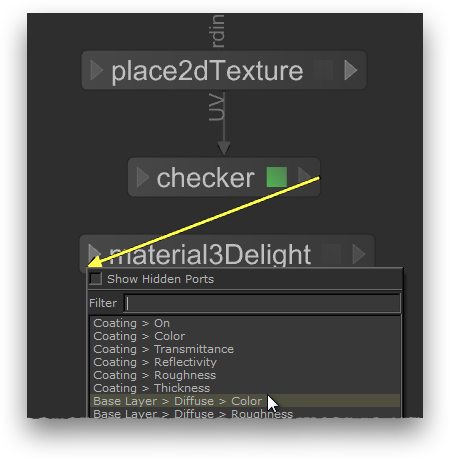
Using the previous steps as a general guide, add a surface shader to the shading network with the following steps: - Create a new DlShadingNode; name it material3Delight and set its nodeType to material3Delight.
- Connect the checker's outColor output port to the material3Delight's colour input port.
|
| Panel |
|---|
| borderColor | #e0e0e0 |
|---|
| bgColor | #f0f0f0 |
|---|
| | Panel |
|---|
Create and configure a NetworkMaterial node.
 Image Added Image Added
Using the previous steps as a general guide, add a NetworkMaterial node and prepare it to receive a connection from a DlShadingNode: - Create a NetworkMaterial node and display it in the Parameters panel;
- Click Add Terminal and select Surface under dl.
This adds an input port suitable to receive a connections from a 3Delight surface material to the Network Material node. | | borderColor | #e0e0e0 |
|---|
bgColor | #f0f0f0 |
| Panel |
|---|
| borderColor | #e0e0e0 |
|---|
| bgColor | #f0f0f0 |
|---|
| Connect the surface shader to the Network Material node.
 Image Added Image Added
- Click on the arrow to the right of material3Delight to display its output ports, and pick outColor.
- Click on the dlSurface input port of the Network Material node to establish the connection.
|
|
|
In order to connect 3Delight shaders to a Network Material node, it must have the proper ports. Adding ports is done by clicking on Add Terminal, then choosing the desired shader type under the dl section in the option menu. The Network Material can now receive an incoming connection from a DlShading Node of the appropriate type.