Page History
This tutorial will show the benefits of using RIB archives rather than Softimage Stand-ins or any other archiving/referencing method.
| Info |
|---|
| Info |
To fully understand this tutorial, you will need some scripting knowledge (in this case Python) and some basic knowledge of the Softimage SDK. But YOU DO NOT you do not need any compiler or developer's SDK installed, everything you need is in the 3Delight for Softimage package. |
In this tutorial you will understand the benefit to use RIB archive rather than Softimage Stand-in or any other archive method.
RIB stand for RenderMan Interface Bytestream you can have more information on this subject in RenderMan Interface Version 3.2.
|
...
There are many ways in which RIB files are used in 3Delight for Softimage.
- You can completely convert your scene into a renderable RIB
...
- file and then
...
- use 3Delight Studio
...
- Pro to render it
...
- using the standalone
renderdlcommand. This is mainly useful for render-farming. - Softimage stand-ins are implemented, behind the scenes, using RIB archives.
- You can export the scene (or parts of) explicitly to RIB archives. These parts are then replaced by simpler stand-in geometry and loaded using the RIB archive feature. This tutorial covers this perticular point.
The main differences between Softimage stand-ins and RIB archives are summerized in the table below.
...
| Stand-in | RIB PropertyArchives |
|---|---|
Simplify your scene size size. | Simplify your scene size. |
Modular approach (update is easily done). | Modular approach (update is easily done). |
Scene is faster to save and load. | Scene is faster to save and load. |
Motion Blur and Depth of Field will react perfectly. | Material can still be live. |
Motion Blur and Depth of Field will react perfectly even if generated without Motion Blur activated. | Material can be overridden like any object. |
| Major speed up during the scene parsing. | Camera projection is still working |
You can add any property (Softimage as well as 3Delight). | |
Transforms are still modifiable. | |
Motion Blur and Depth of Field will react perfectly even if generated without Motion Blur activated. | |
| Major speed up during the scene parsing. |
That is why the focus of this tutorial is related to the RIB archive. Since the RIB archive is a geometry property it needs an a host that will support it. Most of the case time it should be a simple simplified representation of the real object. In this tutorial we will first show you how to create an host that will cover the bounding box of the original object. To be more pipeline oriented, we will We can use a simple Python script in order to generate the bounding box of a selected a bounding box that will act as a hots for the original object :
Open Softimage’s Softimage’s script editor and add the following Python code (make sure the scripting language is set to Python):
Code Block language py title Softimage - Python firstline 1 linenumbers true import os # First verify if you have an object selected if( len( Application.Selection ) > 0 ): object = Application.Selection( 0 ) # Get the bounding box of the object bounding_box = Application.GetBBox( ) bb_x_min = bounding_box( 0 ) bb_y_min = bounding_box( 1 ) bb_z_min = bounding_box( 2 ) bb_x_max = bounding_box( 3 ) bb_y_max = bounding_box( 4 ) bb_z_max = bounding_box( 5 ) # Create the host of RIB property. We are using a mesh in order to use any SI property on it. cube_bounding_box = Application.ActiveSceneRoot.AddGeometry( 'Cube', 'MeshSurface' ) cube_bounding_box.Name = object.Name + '_BBox' cube_bbox_final_name = object.Name cube_bounding_box.length = 1 # The host of the RIB property should cover the bounding box of the original object. cube_bounding_box.PosX = ( bb_x_max + bb_x_min ) / 2 cube_bounding_box.PosY = ( bb_y_max + bb_y_min ) / 2 cube_bounding_box.PosZ = ( bb_z_max + bb_z_min ) / 2 cube_bounding_box.sclx = bb_x_max - bb_x_min cube_bounding_box.scly = bb_y_max - bb_y_min cube_bounding_box.sclz = bb_z_max - bb_z_min Application.FreezeObj( cube_bounding_box )- Select an object
- Execute the script
This should have generate the bounding box of the selected object.
Now , that this is done, we need to create the RIB archive and assign it to the bounding box using the RIB archive property.
To To perform this action add the following code line to the previous file:
| Code Block | ||||||||
|---|---|---|---|---|---|---|---|---|
| ||||||||
delight_pref = Application.Dictionary.GetObject( 'preferences.3Delight', False ) if( delight_pref != None ): delight_pref.ExportMaterialsAndAttributes = False delight_pref.ExportTransformations = False # Promp a folder browser to select the location of your RIB File rib_location = XSIUIToolkit.PickFolder( XSIUtils.ResolvePath( '[Project Path]' ), 'RIB Package Location' ) if( len( rib_location ) != 0 ): rib_file = XSIUtils.ResolvePath( rib_location + os.sep + object.Name + '_RIB.[Frame #4].rib' ) # This will generate the object RIB for this Frame only Application.ExportObjectRenderArchive( object, rib_file, int( XSIUtils.ResolvePath( '[Frame #4]' ) ), int( XSIUtils.ResolvePath( '[Frame #4]' ) ), 1, False, False ) # This will add the RIB Property to the object bounding box rib_property = cube_bounding_box.AddProperty( '3Delight RIB Properties', False, object.Name + '_RIB_PROPERTY_3DELIGHT' ) # This will make sure we are using the delayed mode rib_property.Parameters( 'ArchiveType' ).Value = 'Delayed' # This will make sure we are rendering the RIB and not the bounding box object rib_property.Parameters( 'EnableArchive' ).Value = True # This will add the RIB file path to the RIB property rib_property.Parameters( 'ArchiveName' ).Value = rib_file for property in object.Properties: if( property.Type == 'material' ): Application.CopyPaste( property, '', cube_bounding_box, 3 ) Application.ResetTransform( cube_bounding_box, 'siCtr', 'siScl', 'siXYZ' ) Application.DeleteObj( object ) |
...
At this point, you have just exported your first object as a RIB file and use it for rendering.
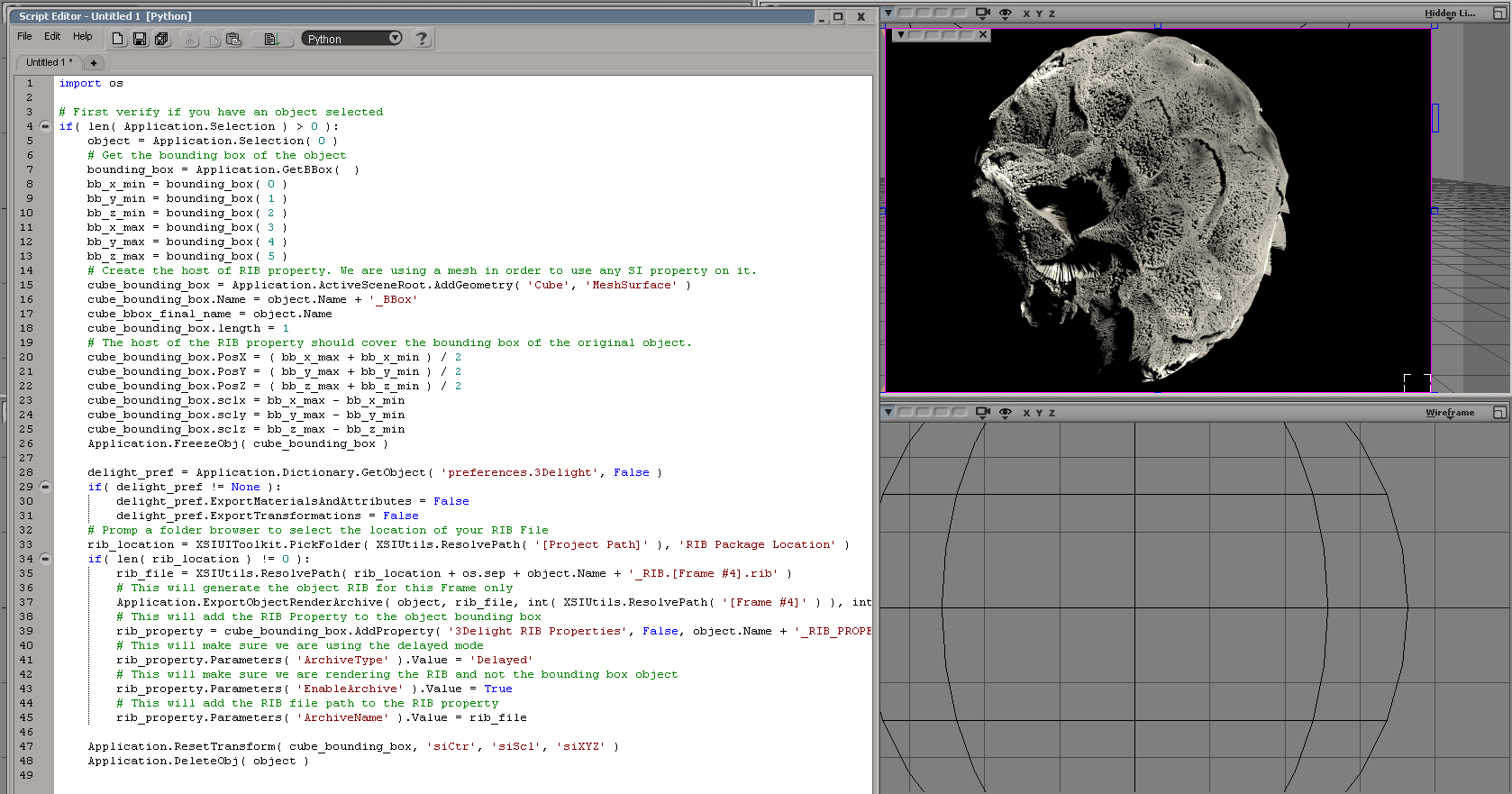
You You will see that when rendering the result will display the “real” object with the exact same look. Also with this solution, you will still be able to apply transforms to the RIB object and also you will be able to edit the shader, override it or even use camera projection on it.
This This can be a major advantage when you are working on very complex scenes.
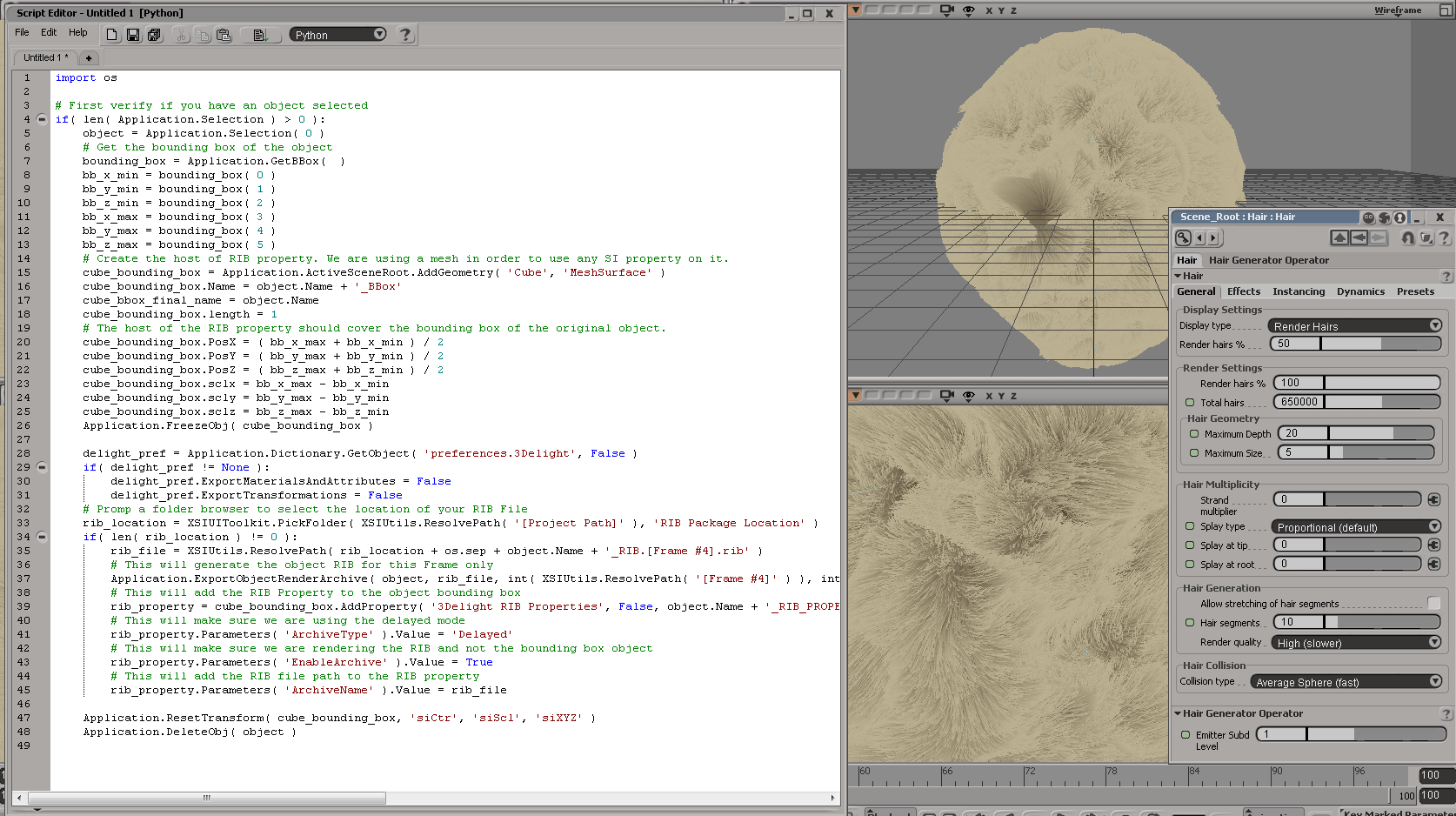
Resulting effects:
Original scene before the RIB archive:

| Code Block | ||||||||
|---|---|---|---|---|---|---|---|---|
| ||||||||
# ------------------------------------------------------ # task user kernel real # ------------------------------------------------------ # Other 0.00 0.03 0.35 # Shader Translation 0.03 0.02 0.14 # Scene Parsing 18. |
...
52    0.76   19.29
# Main Render               1.15    0.58    1.98
# ------------------------------------------------------
# total 19.70 1.39 21.75 |
Scene after the RIB archive:

| Code Block | ||||||||
|---|---|---|---|---|---|---|---|---|
| ||||||||
# ------------------------------------------------------
#   task                     user  kernel    real
# ------------------------------------------------------
# Other                     0.02    0.00    0.44
# Shader Translation        0.02    0.02    0.14
# Scene Parsing             0.06    0.02    0.07
# Main Render               1.15    0.58    1.98
# ------------------------------------------------------
# total 1.25 0.6 2.63 |
...
Overview
Content Tools