Quick Start #1 - First Render
To quickly see how 3Delight can render your scene:
- Load the plug-in (using the Plug-in Manager)
- Open a scene
- Set the default renderer to '3Delight' in Maya's Render Settings dialog.
- Start the render as usual
Quick Start #2 -
Try another Render EngineFirst Color Managed Render with GI
Now that you have already loaded the plug-in, have seen the the Render Settings dialog dialog and rendered with with 3Delight, lets try to explore a few rendering options:a color managed workflow with a GI render:
- Open a scene
- Assign 3Delight Material to all objects in the scene, this will ensure a proper energy-plausible "PBR" material is used everywhere:

- Now, turn ON color management in the render settings:

- Always in the render settings, locate the "Indirect Illumination
- Bring the Render Settings dialog.
- Click on the "Render Engine" group to open it.
- Select the 'REYES' or 'Path Tracing' for the option Render Engine
- Start the render as usual
By default 3Delight uses the 'Path Tracing' Render Engine which offers the best quality/performance for higher pixel complexity, photorealistic, projects.
For lower pixel complexity projects, such as anime and non photorealistic projects, the 'REYES' Render Engine generally offer faster performance.
- , and 'Enable Indirect Illumination':

- In the render settings, 'Scene Elements', create an environment light by clicking first on the "map button", then click on the "AE" button from the attribute editor map a texture with the 3Delight Sky node:

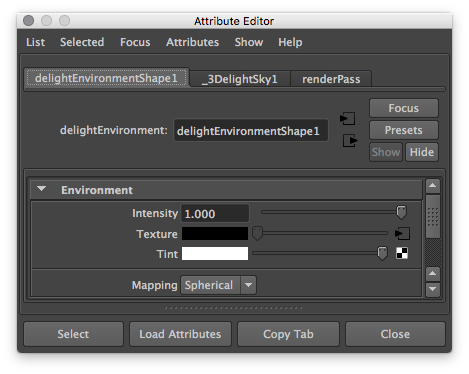
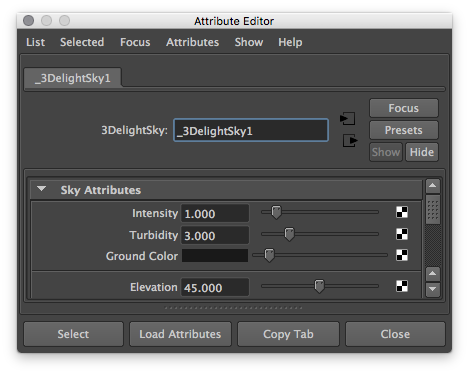
- Make sure to send the render to 3Delight Display by setting it as your default image viewer in the 3Delight preferences:


- Start the render, you can use the render icon on the shelf, or the keyboard shortcut " ; "

- In 3Delight Display make sure your display color profile is set as "Linear to sRGB":

Quick Start #3 - Test Oversampling effect on Speed
- Click on the "Quality" group to open it
- Assign Assign Pixel Samples to a value of 8 x 8
- Render as usual
As you may notice, rendering speed may be slower, but not so significantly with higher sampling rate.
It is worth to notice that in 3Delight Indirect Illumination Samples do not grow when Pixel Samples Samples are raised, with obvious performance gains.
Read also also How to Eliminate Sampling Noises to Noise to better understand how to resolve sampling in in 3Delight.
Quick Start #4 - Render Polygon Mesh as Subdivision Surface
There are two three ways to render a polygon mesh as a subdivision surfacean infinitely smooth analytic subdivision surfaces:
- Via the 3Delight Relationship Editor or AssignmentPanel (the 3Delight for Maya way). The advantage of this method is that you can set the option on a large number / hierarchy of objects quickly. Because this method does not affect the OpenGL viewport there is no performance loss when setting the attributes on large polygon meshes.
- Via Maya smooth mesh shape nodes attributes or Maya "3" Hotkey (the Maya way). The advantage of this method is that you just need to hit the hotkey and you will see the object displayed as smooth mesh also in the OpenGL viewport. The main disadvantages here is that for large number of meshes and large polygon counts the Maya Viewport will be lagging.
- Via the 3Delight extension attributes on polygon mesh Maya shape nodes.
| Info |
|---|
Note that 3Delight for Maya correctly interprets |
For the first method
- Bring up the 3Delight Relationship Editor.
- In the "Shaders / Attribs" section, choose Create > Geometry Attributes Node.
- Click on the new geometry attributes node in the "Shaders / Attribs" section and click on a polygon mesh object in the "Objects" section.

- Right-click on the geometry attributes node in the Shaders / Attribs" section, and pick "Show in AE".
In the Attribute Editor, right-click on the Add / Remove Attributes... button and navigate to Geometry > Polygons > Poly As Subd.
Info You should only add attributes selectively, like in this example where you are adding the Poly As Subd attribute. Do not add all attributes in one go, many attributes will locally override global settings and will produce unwanted results.
- Turn on the newly added "Poly As Subd" attribute.
- Render as usual.
The polygon mesh object will be rendered as a subdivision surface. For round edges see this page.
For the second method (quick previews)
...
The polygon mesh object will be rendered as a subdivision surface.
For the third method (shape attributes)
Select your polygon object.
- Go to the shape node, and locate the 3Delight extension attributes, turn ON the Render as Subdivisions checkbox

- Render as usual.
The polygon mesh object will be rendered as a subdivision surface.
| Info |
|---|
It is worth to mention that, regardless of the method, |
...
in 3Delight there is no need to set a number of subdivisions to pre-tessellate subdivisions, nor a "strategy" to subdivide the mesh (e.g. length/distance/angle); 3Delight always resolves subdivision surfaces analytically, at render time. This has an obvious advantage in UI/UX simplicity and in visual quality since no |
...
matter how close you render your subdivision meshes, they will always be smooth. |
Quick Start #5 - Try another Render Engine
...
By default 3Delight uses the 'Path Tracing' Render Engine which offers the best quality/performance for higher pixel complexity, photorealistic, projects.
Path Tracing is the default and recommended choice.
3Delight also offers the "legacy" 'REYES' Render Engine , which can still be used for lower pixel complexity projects and:
- Bring the Render Settings dialog.
- Click on the "Render Engine" group to open it.
- Select the 'REYES' or 'Path Tracing' for the option Render Engine
- Start the render as usual
Each Render Engine has its own strength, read more about it on Pros and Cons of Path Tracing vs REYES.