...
There are two ways to specify 3Delight materials in your recipe: using Katana's Material node, and using Katana's Network Material nodeMaterial node. The The main difference between both is that you may define a whole shading network based on a Network Material, while a Material a Material node may only specify a sole shader.
| Anchor |
|---|
| UsingTheMaterialNode |
|---|
| UsingTheMaterialNode |
|---|
|
Using the Material Node| Section |
|---|
| Column |
|---|
|
| Panel |
|---|
| borderColor | #e0e0e0 |
|---|
| bgColor | #f0f0f0 |
|---|
| Create a Material node.
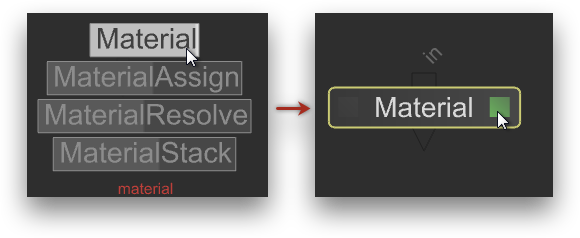
- Press tab and begin to type "material".
- Pick Material to create a Material node.
- Click the faint gray square to the right of the new node's label (or press E) to edit its parameters in the Parameters panel.
|
| Panel |
|---|
| borderColor | #e0e0e0 |
|---|
| bgColor | #f0f0f0 |
|---|
| Add a 3Delight shader to the material node.
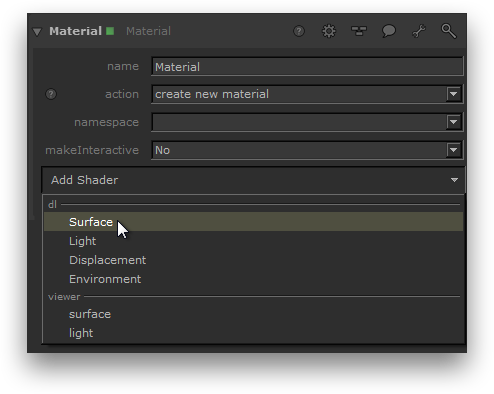
In the Parameters panel, click Add Shader and select the type of shader you want to create under dl. In this example, a surface shader is created. |
| Panel |
|---|
| borderColor | #e0e0e0 |
|---|
| bgColor | #f0f0f0 |
|---|
| Select a 3Delight shader.

Click the down arrow to the right of the dlSurfaceShader label to display a list of available surface shaders. Select the desired shader from the list. |
| Panel |
|---|
| borderColor | #e0e0e0 |
|---|
| bgColor | #f0f0f0 |
|---|
| The shader parameters are now accessible.
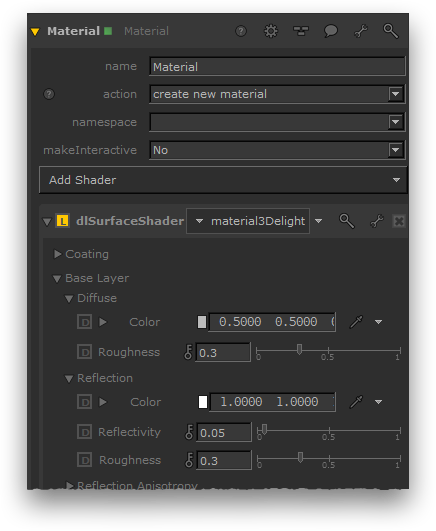
Unfold the parameters by clicking the arrow to the left of the dlSurfaceShader label to reveal the shader parameters. |
The Material node can be assigned to scene objects using the MaterialAssign node. |
|
| Anchor |
|---|
| UsingTheNetworkMaterialNode |
|---|
| UsingTheNetworkMaterialNode |
|---|
|
Using the Network Material NodeThis procedure illustrates how to create a shading network composed of some 3Delight shaders. The shading network is composed of some DlSahdingNodes, and one NetworkMaterial node. The Network Material can be assigned via a materialAssign node.
The task of creating a shading network is much simplified by using the shading node layered menu - it becomes a simple matter of connecting together node groups.
| Section |
|---|
| Column |
|---|
|
| Panel |
|---|
| borderColor | #e0e0e0 |
|---|
| bgColor | #f0f0f0 |
|---|
| Create a surface shader.

- In the Nodegraph, press
S to display the shading node layered menu. Begin to type "material". - Pick material3Delight to create the shading node. A NetworkMaterial node is automatically created and connected to the output of the new material3Delight node.
|
| Panel |
|---|
| borderColor | #e0e0e0 |
|---|
| bgColor | #f0f0f0 |
|---|
| Create a texture for the surface shader.

- In the Nodegraph, press
S to display the shading node layered menu. Begin to type "checker". - Pick checker to create the node. Since checker is a 2D Texture node, a place2dTexture node is automatically created and connected to it.
- Click on the faint square to the right of the node name label (or press E) to edit the node's parameters in the Parameters panel.
|
| Panel |
|---|
| borderColor | #e0e0e0 |
|---|
| bgColor | #f0f0f0 |
|---|
| Configure the place2dTexture shader.
 Image Modified Image Modified
- Set the RepeatU and RepeatV parameters to 8
, and rename the node to something more evocative, like "place2dTexture" |
| Panel |
|---|
| borderColor | #e0e0e0 |
|---|
| bgColor | #f0f0f0 |
|---|
| Connect the texture shader to the surface shader.
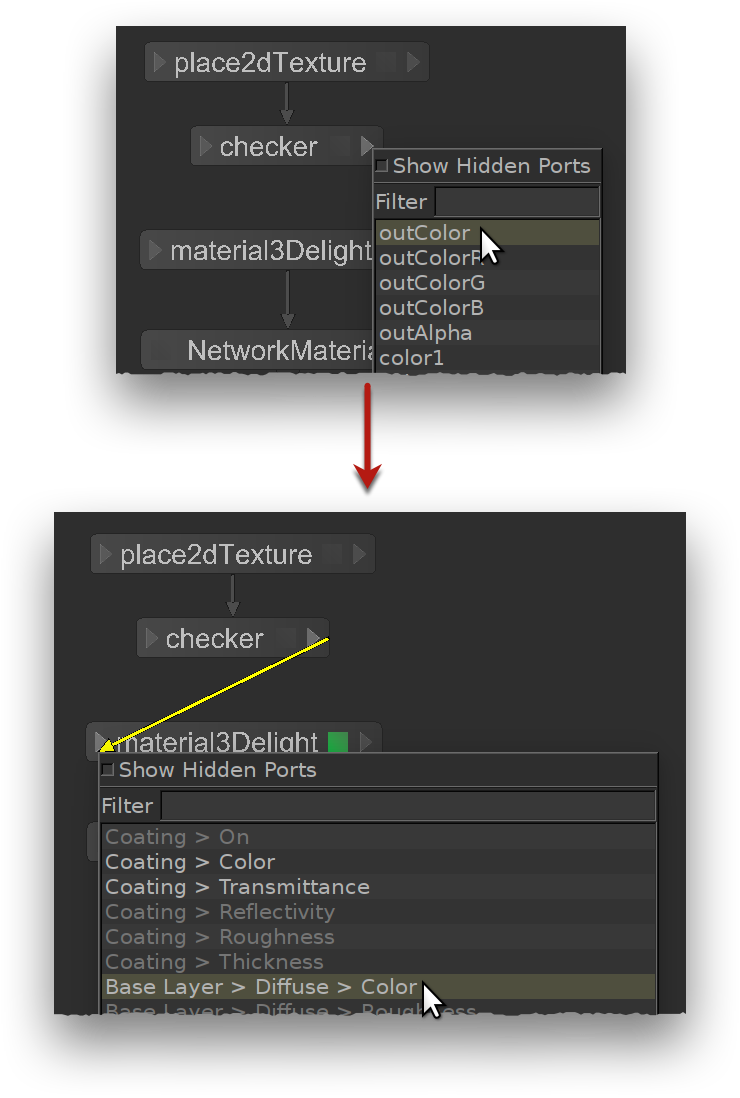
- Click on the arrow to the right of the checker node to select an output port to connect.
- Select outColor from the output port list.
- Click the arrow to the left of the material3delight node to select the input port to connect.
- Select Base Layer → Diffuse → Color.
|
The NetworkMaterial can be assigned using a materialAssign MaterialAssign Katana node. |
|
...