| Section |
|---|
| Column |
|---|
|
| Panel |
|---|
| borderColor | #e0e0e0 |
|---|
| bgColor | #f0f0f0 |
|---|
| title | In this section: |
|---|
| |
| Widget Connector |
|---|
| url | https://vimeo.com/174603702 |
|---|
|
|
|
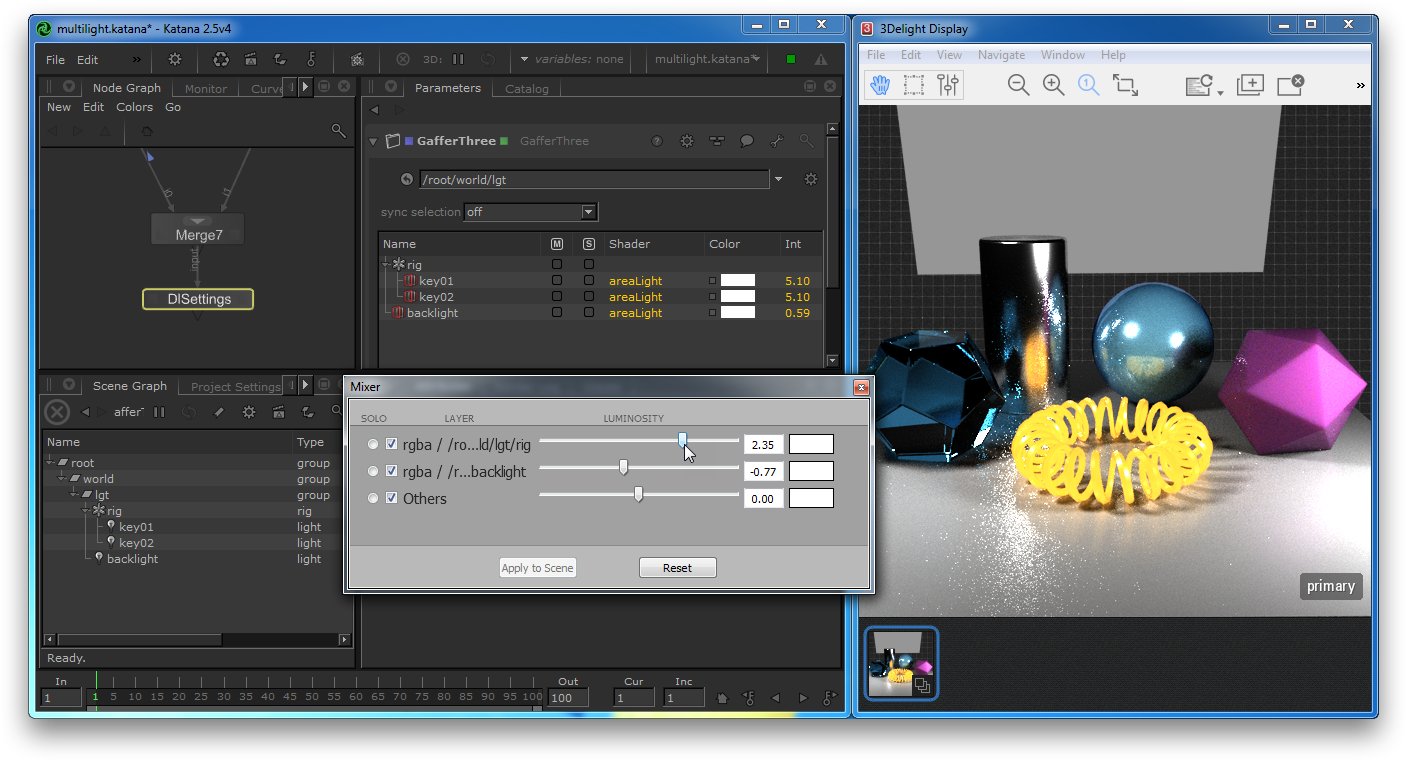 Image Removed
Using 3Delight Display's Mixer to interactively adjust light intensities; the modifications are instantly shown in the rendered image and applied in the scene by KATANA.
This tutorial illustrates how to render multiple light layers at once using 3Delight for KATANAKatana, and how this kind of rendering can be used in 3Delight Display to interactively adjust the scene light intensities. In this context, the modifications are instantly shown in the rendered image and are applied in on the scene light sources by KATANAKatana. The scene Katana project is available as a small package file here.(fixme: first step is to adjust the path of the abc file by double-clicking on the Alembic_In node at the top of the Node Graph. In the Parameters section, click the down arrow next to the abcAsset textfield; pick Browse and select the mv.abc file that is next to the katana scene file).
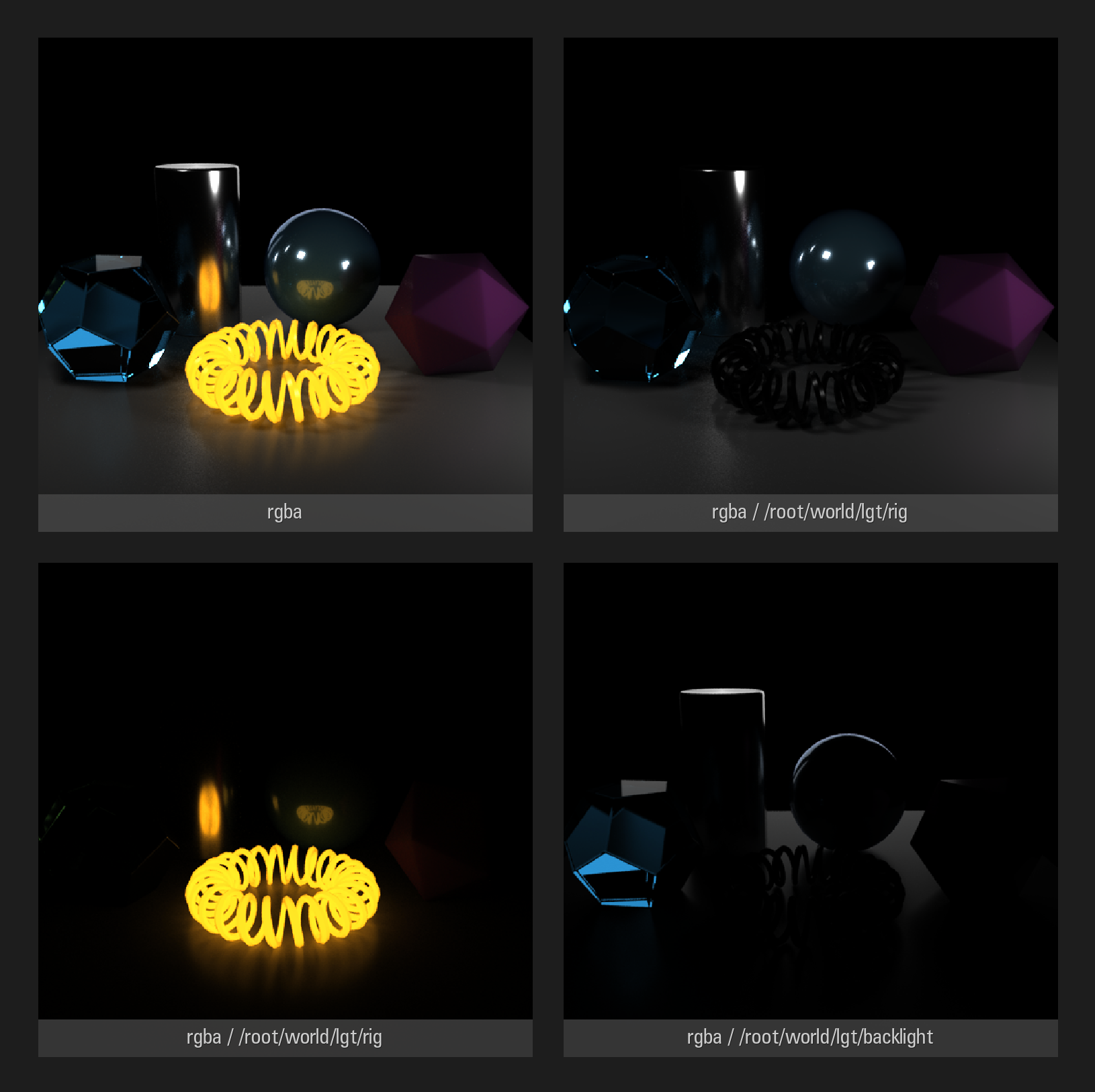 Image Added
The layers of a multi-light image. Rendering such an image requires about 12% more time than rendering the RGBA "beauty" layer alone.
Rendering a multi-light image in Katana
| Section |
|---|
|
section |
| Section |
|---|
| Column |
|---|
|
| Column |
|---|
|
| Column |
|---|
|
| Section |
|---|
| In the Katana Preferences, make sure that the 3Delight Render View preference is is to either 3Delight Display or Both.
 Image Added Image Added
This will ensure that 3Delight Display is launched upon rendering. We are going to use its Mixer feature a bit later. |
| Panel |
|---|
| borderColor | #e0e0e0 |
|---|
| bgColor | #f0f0f0 |
|---|
| In the Node Graph, double-click DlSettings to display its parameters. Expand Image Layers, then Multi-Light. In the light list,select the light layers to be rendered.
 Image Added Image Added
|
| Panel |
|---|
| borderColor | #e0e0e0 |
|---|
| bgColor | #f0f0f0 |
|---|
| Start a Preview Render by right-clicking the Render node and choosing Preview Render.
 Image Added Image Added
3Delight Display will open and show the rendering as it progresses. |
| | Column |
|---|
| | Column |
|---|
| width | 56
| Panel |
|---|
| borderColor | #e0e0e0 |
|---|
| bgColor | #f0f0f0 |
|---|
| In the Multi-Light section, select the light layers to be rendered. In this sample scene, the key lights are grouped in a rig. Rigs get their own entry multi-light list; selecting one rig in that list will render a layer containing all of the rig's lights. Independent lights are listed under the Lights section. |
|
|---|
| Column |
|---|
|
|
section 3Delight Display, display the contact sheet by double-clicking the image or its thumbnail.
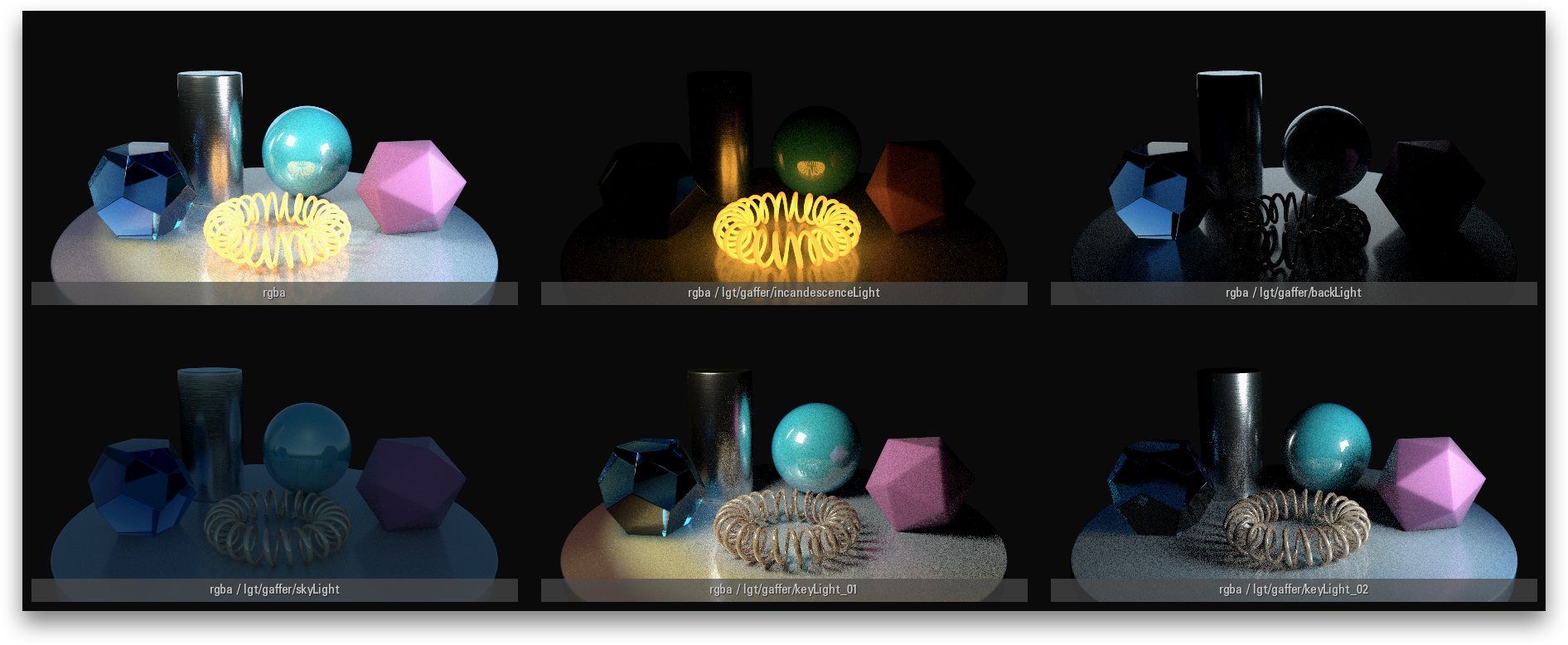 Image Added Image Added
The Contact Sheet can also be displayed by choosing View → Contact Sheet. All rendered layers are shown. You can see one layer per entry picked in the Multi-light list, in addition to the primary rgba layer. Click on a layer in the contact sheet to display it in full size. You can also use the page up and page down keys to cycle through the layers. Select the primary rgba layer to continue. |
|
|
Light Mixing in 3Delight Display
3Delight Display's Mixer can be used to interactively adjust light intensities. The modifications are instantly shown in the 3Delight Display rendered image and applied on the light sources by Katana.
| Section |
|---|
|
section |
| Section |
|---|
| Column |
|---|
|
| Column |
|---|
|
| Column |
|---|
|
| Section |
|---|
| Column |
|---|
| | Column |
|---|
| | In Katana double-click on the GafferThree node to edit its parameters. Note the current light intensity values.
 Image Added Image Added
|
| Panel |
|---|
| borderColor | #e0e0e0 |
|---|
| bgColor | #f0f0f0 |
|---|
| Back in 3Delight Display, open the preferences by choosing File → Preferences...
 Image Added Image Added
In the Preferences window, pick the General tab. Make sure the Enable interactive adjustments of lights in the scene is enabled. Close the Preferences dialog. |
| | Panel |
|---|
| borderColor | #e0e0e0 |
|---|
| bgColor | #f0f0f0 |
|---|
| Bring up the Mixer by choosing Edit → Mixer...
 Image Added Image Added
The Mixer displays a list of lights that matches the selected entries in the Multi-LIght list of the rendering attributes. - Clicking on the solo gadget of a given light or rig will change the rendered image to show only that light's contribution to the rendering. At most one Mixer item can set as solo.
- Clicking the check box gadget will toggle that light or light rig contribution to the rendered image on or off.
- The Luminosity slider acts as an exposure on the light or light rig contribution to the rendered image.
- The colour picker acts as a multiplier to the light source or light rig colour.
|
| column
| width | 22 |
|
section | | Column |
|---|
| | Drag one of the Luminosity sliders; you will see that the rendered image in 3Delight Display will conform to the modified intensity. The intensity values of the light(s) in Katana will change accordingly.
 Image Added Image Added
|
| | Column |
|---|
| width | 56
|
|---|
|