changes.mady.by.user 3Delight
Saved on Oct 30, 2017
...
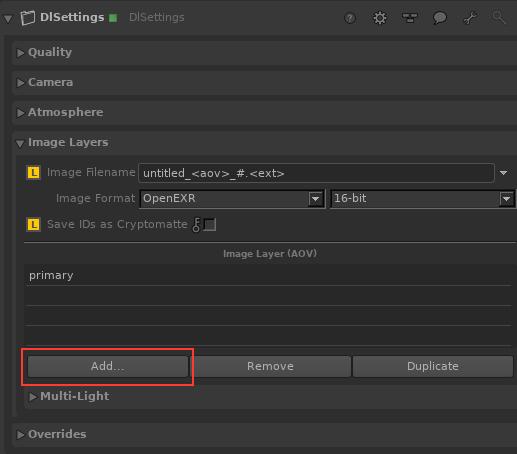
Open the DlSettings nodeSelect OpenEXR as the Output Format.
Image RemovedImage Added
Open AOV Selector.
In the Parameters panel, click Add... in the Image Layers section to open the AOV Selector.
Select the IDs you want to save as CryptoMatte Cryptomatte.
All available IDs are shown in Auxiliary Variables. Click OK to confirm your choice.
Enable CryptoMatte Cryptomatte Export.
Make sure to click on Save IDs as CryptoMatteCryptomatte toggle to enable CryptoMatte Cryptomatte export.
 Image Removed
 Image Added