ファイルによっては3Delight for Mayaによって自動で作成されます。ファイルの保存先はMayaのProject Windowにて指定できます。
Some files are automatically generated by 3Delight for Maya. The destination folders for these files are specified in the Project Window of Maya.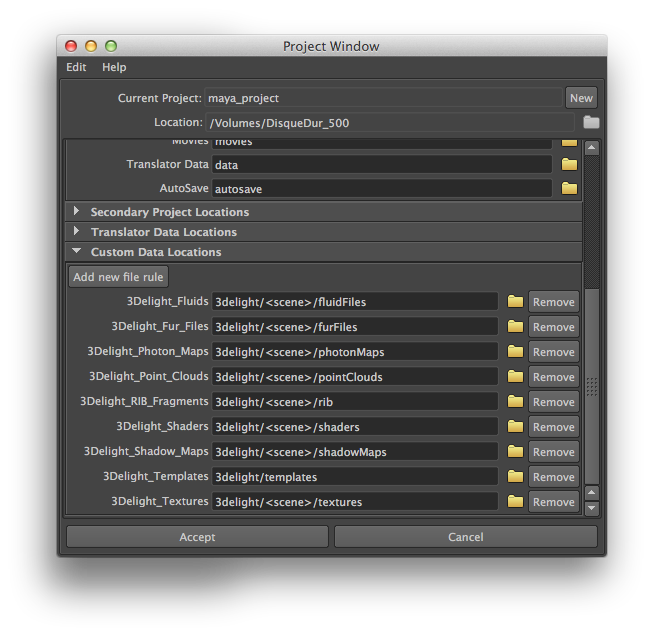
Project Window 内Custom Data Locationsにて設定
3Delight for Mayaで使用するデフォルトのデータ保存先はProject Windowにて確認できます。フォルダはMayaのProjectとして設定した場所からの相対パス以下に作成されます。
以下は各フォルダの解説です。
The default locations for 3Delight for Maya data are indicated in the Project Window. These, like other Maya project settings, are relative paths to the Maya project's Location (specified at the top of the same window). Here is a description of these data locations:
3Delight Fluids
Fluidsデータの保存先を指定します。3Delight for Mayaではfluidシミュレーションのキャッシュが存在しない場合、各fluidの表示に生成データが必要になります。
Specifies the folder where Fluids data will be saved. 3Delight for Maya needs to generate data files for each fluid node visible in the scene if the fluid simulation has not been cached.
3Delight Fur Files
Furデータの保存先を指定します。3Delight for MayaではFurを表示するジオメトリデータが必要になります。また、Shave and a Haircutプラグインを使用したRIBファイルもここに保存されます。詳細はShave and a Haircut Tipsを参照下さい。
Specifies the folder where Fur Files will be saved. 3Delight for Maya needs to generate a geometry file for eachFur Feedback node visible in the scene. Also saved at this location are RIB file produced by the Shave and a Haircut plugin in some cases. Refer to Shave and a Haircut Tips.
3Delight Photon Maps
現在は使用していません。
Deprecated. These files no longer exist.
3Delight Point Clouds
3Delight RIB Fragments
Point CloudsとRIB Fragmentsファイルを保存します。
Specifies the folders where Point Clouds and RIB Fragments will be saved respectively.
3Delight Shaders
RenderManシェーダーがアサインされていない場合、3Delight for MayaはHypershade shading networkでアサインされているシェーダーをRenderManシェーダーに変換しようと
試みます。この工程で‘src’フォルダにシェーダーのソースファイルが作られ、そのソースファイルがコンパイルされ‘OBJ’フォルダにシェーダーファイルが作成されます。‘src’と‘OBJ’フォルダ共に3Delight Shadersで指定したフォルダ以下に作成されます。この設定で保存されるのはHypershadeから変換されるシェーダーのみであることに注意して下さい。RenderManシェーダーや3delight Shader Selectorに表示されるパスには適用されません。
When an object has no RenderMan shader attached to it, 3Delight for Maya will attempt to translate anyHypershade shading network attached to that object to RenderMan shaders, which are then used in the rendering. This process generates shader source files, which are stored in a ‘src’ directory. These source files are then compiled into compiled shader files and stored under the ‘OBJ’ directory. Both the ‘src’ and‘OBJ’ folders are created under the folder specified by 3Delight Shaders. Note that this project setting is relevant only for translated shaders from Hypershade networks. It has no effect on RenderMan shader nodes or on the shader paths displayed in the Shader Selector.
3Delight Shadow Maps
Shadowマップの保存先を指定します。Shadowマップの保存はauto-generated Shadow MapsがONになっており、以下の条件を満たしている場合に有効となります。
Specifies the folder where auto-generated Shadow Maps will be saved. Shadow Maps will be automatically generated only if the Auto-Generate Shadow Maps rendering attribute is turned on and if either:
- ライトのUse Depth Map ShadowsがONになっており、Light Attribute Nodeがアタッチされていない。
A light source has no Light Attribute Node attached to it and its Use Depth Map Shadows attribute is turned on. - ライトにLight Attribute Nodeがアタッチされ、自身のアトリビュートでGenerate Shadow MapsがONになっている。
A light source has a Light Attribute Node attached to it and this attribute has its Generate Shadow Maps attribute turned on.
- ライトのUse Depth Map ShadowsがONになっており、Light Attribute Nodeがアタッチされていない。
3Delight Templates
Render Pass用のテンプレートファイルが保存されます。保存したテンプレートはCreate Render Pass from Templateより呼び出せます。テンプレートファイルは実行時にファイルが保存されますが、後述の環境変数_3DFM_OUTPUT_PATHによる影響は受けません。詳細はSaving a Render Pass as a Templateを参照下さい。
Specifies the folder where Render Pass templates are saved and looked up for the Create Render Pass from Template menu. Note that template files are created on-demand only and are not affected by the _3DFM_OUTPUT_PATH environment variable described below. See Saving a Render Pass as a Template for details.
3Delight Textures
レンダリングの高速化を図るため、Hypershadeで使用される全てのテクスチャファイルは拡張子‘.tdl’のファイルに変換されます。この変換作業は3Delight Texturesで指定したフォルダ以下にファイルが生成されます。Preparing Textures for Renderingで解説されていますが、変換しないよう事前にファイルを準備することができます。
Any node in an Hypershade network that uses a texture file name not ending with the ‘.tdl’ extension will undergo a texture conversion process in order to speed up texture lookup during rendering. This conversion produces a3Delight texture file that is stored under the directory specified in the 3Delight Textures project setting. It is possible to prepare texture files in order to avoid this conversion as explained in Preparing Textures for Rendering.
Data Creation and Removal Processデータの作成と除去?移動?
下記は各所へのデータ作成と??についての記述です。
This tables explains the process behind the creation and removal of the data files at these locations.
| Data Location | Creation and Removal Process |
|---|---|
| 3Delight Fluids 3Delight Fur Files | 各フレーム毎に、レンダリングが行われる前にファイルが作成されます。本来はレンダリング後には必要としないため破棄されるべきなのですが、現在のバージョンではこれらのファイルを保持したままとなっています。 These files are written for each frame. At each re-render, they will be rewritten. These files are not useful anymore after each rendering and should be discarded, but in the current implementation, 3Delight for Maya leaves them hanging. |
| 3Delight Point Clouds 3Delight RIB Fragments ____________________ | それぞれのオプションがオンの時、フレーム毎にファイルが作成されます。Write ModeをOverwriteにすると既存のファイルを上書きし、Reuseにするとファイルを再利用します。つまり、ユーザーが削除しない限りファイルが残ります。 These files are generated for each frames if their respective options are enable. They each have a Write Mode set to either overwrite existing file or reuse existing file. It means these files can remain valid indefinitely. |
| 3Delight Shaders 3Delight Textures | コンパイルされたシェーダーの保持や再利用、テクスチャ変換を行います(再コンパイル・変換はレンダリング時に必要な時のみ行われます)。 デフォルトの保存場所ではレンダリングファームのような複数台のPCでレンダリングをかける際に問題を引き起こす場合がなります。 |
| 3Delight Shadow Maps | Auto-Generate Shadow Mapsがオンの場合、各フレーム毎にファイルが作成されます。Shadow Mapが存在する場合は再利用されます。 Shadow Mapsファイルの生成にも前述の問題が起こりえますが、頻度は少ないです。 |
| 3Delight Templates | インターフェースからの実行によりファイルの作成と変更が可能です。Maya内の "preferences"と似ており勝手に削除されることはありません。 Template files are created and modified by direct user actions through the user interface. Similar to "preferences" of an application. They are never removed otherwise. |
Environment Variables to Override the Project Window's Data Locations Project Windowの保存先を環境変数で上書き
デフォルトで3Delight for Maya のデータ保存先は前述の通りで、その他手動で設定したもの(例えばレンダリングされるファイル名などはImage Layersで指定します)はMayaのProjectからの相対パスで設定されます。このProjectからの保存先を変えたい場合、_3DFM_OUTPUT_PATHという環境変数を指定することでProjectのパスそのものを変更することが可能になります。
前述で指定した3Delight for Maya のデータは全て新しく設定されたPrijectパスからの相対位置に保存されるようになります。
By default, the 3Delight for Maya data locations described above, and others described elsewhere in this manual (such as the Image Filename rendering attribute in the Display group), are relative to the Maya project Location. Sometimes, it is not desirable to produce such files at that Location. Alternately, it is possible to override thatLocation, in the context of 3Delight for Maya data, using an environment variable named _3DFM_OUTPUT_PATH. Doing so will prepend all of the 3Delight for Maya data locations described above, and others described in this manual, with the path specified by this environment variable instead of the Maya project's Location.
環境変数の_3DFM_OUTPUT_PATHはMayaが起動(あるいはRenderコマンドの実行)する前に定義している必要があります。
The environment variable _3DFM_OUTPUT_PATH needs to be defined before Maya (or Maya's Render command line utility) is launched.
_3DFM_OUTPUT_PATHに加えて、以下の環境変数が定義されているとその値は Project Windowでしているパスを上書きします。
In addition to _3DFM_OUTPUT_PATH, if the following environment variables are defined, their values will be used to override the corresponding data location in the Project Window.