This guide is only valid for the 3Delight RSL renderer, for the 3Delight OSL renderer a much more streamlined guide will be provided. |
Under-sampling is almost always the cause of noise in your renders.
When noise is present in your image the following step-by-step guide should help you locate it and resolve it.
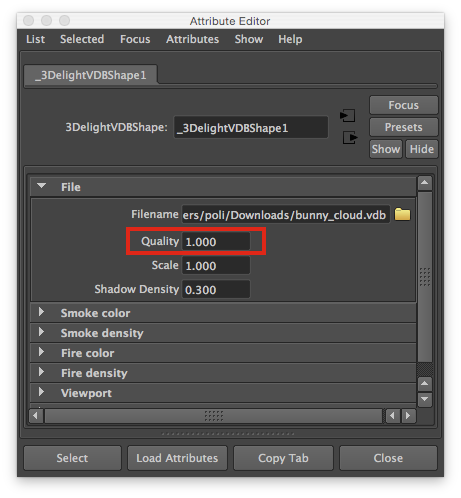
Let's first look at where are the samples settings in the various UIs in Maya:
![]() | ![]() | ![]() | ![]() | |
|---|---|---|---|---|
RenderPass | Light | Material | Fluids | OpenVDB |
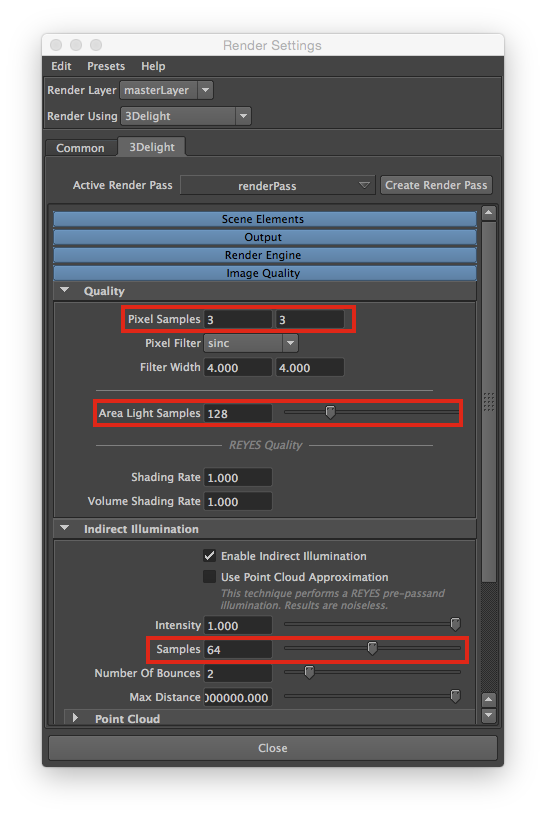
The global sampling settings are in the Render Pass, where you can find:
Note that unlike other renderers 3Delight offers a high quality "Sinc 4, 4" filter which is set by default and is suggested for high quality renders. |
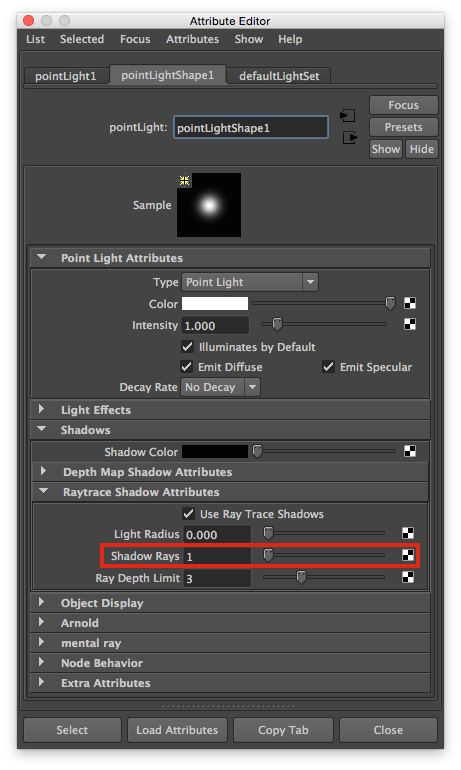
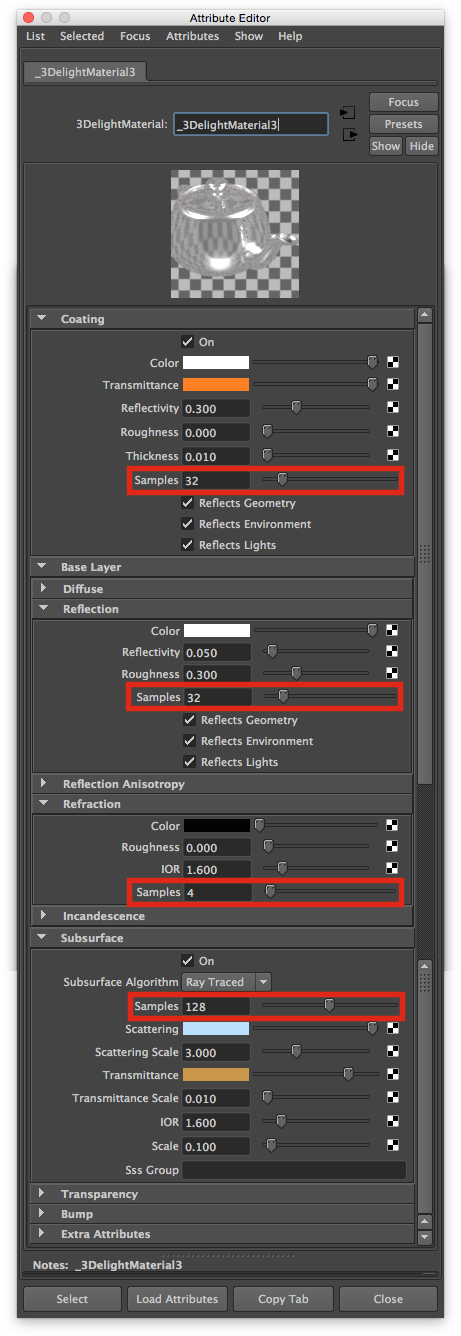
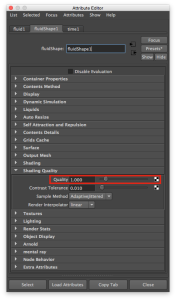
There are two types of Lights: 1. (geometric) Area lights, the latter are sampled globally from the RenderPass via Quality> Area Light Samples (see previous). This affects both direct illumination and shadowing. 2. Delta lights (lights with no area): they are sampled locally. In Maya there are 3 types of delta lights: directional, point and spot. Delta lights have no actual area but can produce soft shadows via increasing the Maya "Light Radius" attribute, you can control its sampling by tweaking the number of shadow rays in the Raytrace Shadow section of the Maya attribute editor. | On Materials (surface shaders). As en example in the UI screenshot above you can see the sampling settings in the 3DelightMaterial, if you are using custom materials you will have other sampling settings depending on the material design. In general consider that each indirect specular and subsurface component usually requires a sample setting. | On Volumes (volume shaders). This is for Maya Fluids containers. | On Volumes (volume shaders). This is for OpenVDB shape. |
Now let's go into the steps to check and eliminate noise:
The very first question to ask yourself: do you require 3D motion blur and/or 3D depth of field (DOF)? If so enable them and render with default settings. Then is there any noise due to motion blur and/or DOF? (tip: looking at the alpha channel will easily tell you if more pixel sampling is needed)
→ First make sure you turn on Motion Blur and/or Depth of Field in the quality group of attributes of the Render Settings. Note that for DOF you also need to enable DOF in the Maya camera shape node. You will most likely need to increase the pixel samples (in Quality: Sampling) from the default value (3x3) to a higher value. Typical values for motion blurred and/or DOF shots can be in the range of 6x6 to 12x12 or even more when DOF is narrow (high blur). By increasing pixel samples you will also automatically resolve any edge aliasing you might experience.
Note that 3Delight is designed for production usage and, unlike other rendering engines, its efficient sampling allows for high pixel samples counts without exponential increase in render times. Therefore we strongly recommend to render with 3D motion blur and DOF rather than offsetting these important aspects of imagery to the compositing phase where equivalent quality cannot be achieved and where the compositing graph would result overcomplicated and time consuming. The decision whether to render with 3D motion blur and/or DOF should be clear upfront then. This guide assumes you are aware of it and optimize sampling based on an ad-hoc pixel samples count which optimally renders such effects. This guide also naturally assumes you are rendering with the default Path Tracing engine. |
It is also possible that the cause of very specific noises in your scene might be related to:
Related articles