Upon loading the 3Delight for Cinema4d plug-in, a 3Delight shelf will be installed.

The 3Delight shelf
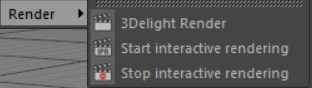
The shelf has three sections: rendering & render settings, object creation, and material creation. The 3Delight menu also offers most of the shelf actions that are related to rendering, render settings and object creation.
Rendering & Render Settings
Rendering
Use these shelf buttons to start a new rendering or stop an ongoing one. See Rendering with 3Delight for more details about rendering.
| Start an interactive rendering. |
 | Start a live (IPR) rendering. |
 | Abort render. |

Object Creation
The following shelf buttons can be used to create new scene objects.
 | Create a new Cinema4D area light with a quadratic decay rate. |
 | Create a new incandescence light. |
 | Create a new environment light. |
 | Create a new 3Delight Open VDB shape assigned to a new 3Delight Open VDB shader. |
Material Creation And Assignment
The following buttons can be used to create a new material and assign it to the objects in the current Cinema4D selection.
Right-clicking on the buttons will show an Assign Existing: menu listing all existing materials of the type specified by the button. Choosing one will assign it to the objects in the Cinema4D selection
| Create and assign a new 3Delight Material. |
| Create and assign a new 3Delight Skin material. |
| Create and assign a new 3Delight Hair and Fur material. |
| Create and assign a new 3Delight Metal material. |
| Create and assign a new 3Delight Glass material. |
| Create and assign a new 3Delight Substance material. |
| Create and assign a new 3Delight Layered Material. |


